<?xml version="1.0" encoding="utf-8"?><feed xmlns="http://www.w3.org/2005/Atom" xml:lang="en-GB"><generator uri="https://jekyllrb.com/" version="4.4.1">Jekyll</generator><link href="https://blog.cyberops.team/feed.xml" rel="self" type="application/atom+xml" /><link href="https://blog.cyberops.team/" rel="alternate" type="text/html" hreflang="en-GB" /><updated>2026-10-03T18:14:51+00:00</updated><id>https://blog.cyberops.team/feed.xml</id><title type="html">CyberOps.Team Blog</title><subtitle>Security research from CyberOps.Team. Offensive tradecraft, detection engineering, threat hunting and incident response write-ups, with code you can use.</subtitle><author><name>CyberOps.Team</name></author><entry><title type="html">Example post: images, GIFs and screen recordings</title><link href="https://blog.cyberops.team/misc/example-post-with-images-and-gifs/" rel="alternate" type="text/html" title="Example post: images, GIFs and screen recordings" /><published>2026-10-02T00:00:00+00:00</published><updated>2026-10-02T00:00:00+00:00</updated><id>https://blog.cyberops.team/misc/example-post-with-images-and-gifs</id><content type="html" xml:base="https://blog.cyberops.team/misc/example-post-with-images-and-gifs/"><![CDATA[<p>This post shows each way to add pictures to a write-up. Every example below is live, so you can see the result and copy the text above it. All images for a post live in one folder, <code class="language-plaintext highlighter-rouge">assets/img/&lt;post-name&gt;/</code>; this post’s are in <code class="language-plaintext highlighter-rouge">assets/img/example-post-with-images-and-gifs/</code>.</p>

<p>Click any image to see it full size. Press <kbd>Esc</kbd> or click again to close it.</p>

<h2 id="the-quickest-way-paste-a-screenshot">The quickest way: paste a screenshot</h2>

<ol>
  <li>Take a screenshot with <kbd>Win</kbd> + <kbd>Shift</kbd> + <kbd>S</kbd>.</li>
  <li>Click where you want it in your post and press <kbd>Ctrl</kbd> + <kbd>V</kbd>.</li>
</ol>

<p>VS Code saves the image into this post’s folder and inserts a line like this:</p>

<div class="language-markdown highlighter-rouge"><div class="highlight"><pre class="highlight"><code><span class="p">![</span><span class="nv">Alt text</span><span class="p">](</span><span class="sx">../assets/img/my-post/image.png</span><span class="p">)</span>
</code></pre></div></div>

<p>Change <code class="language-plaintext highlighter-rouge">Alt text</code> to a short description of what the image shows, and rename the file to something meaningful (<code class="language-plaintext highlighter-rouge">image.png</code> → <code class="language-plaintext highlighter-rouge">edr-alert.png</code>). You can also drag image files from File Explorer into the post; they’re copied into the same folder.</p>

<h2 id="a-plain-image">A plain image</h2>

<p>The simplest form, for an image that needs no caption:</p>

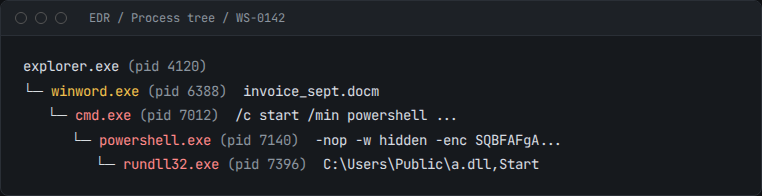
<div class="language-markdown highlighter-rouge"><div class="highlight"><pre class="highlight"><code><span class="p">![</span><span class="nv">Process tree showing Word launching PowerShell</span><span class="p">](</span><span class="sx">/assets/img/example-post-with-images-and-gifs/process-tree.png</span><span class="p">)</span>
</code></pre></div></div>

<p><img src="/assets/img/example-post-with-images-and-gifs/process-tree.png" alt="Process tree showing Word launching PowerShell and then rundll32" /></p>

<h2 id="an-image-with-a-caption">An image with a caption</h2>

<p>Type <code class="language-plaintext highlighter-rouge">fig</code> and press <kbd>Ctrl</kbd> + <kbd>Space</kbd> to insert this. Captions can include <code class="language-plaintext highlighter-rouge">code</code> and <strong>bold</strong>.</p>

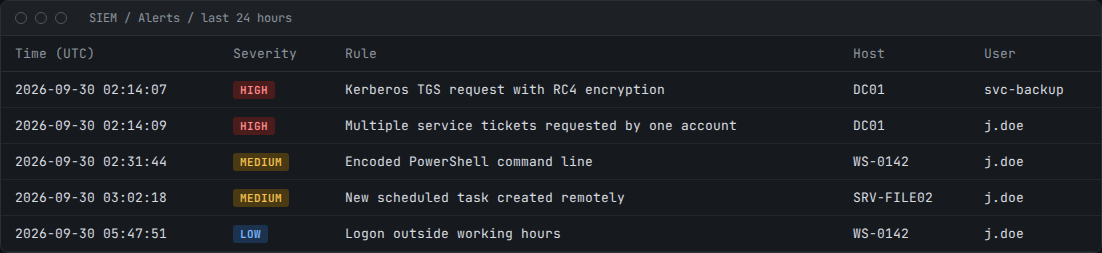
<div class="language-liquid highlighter-rouge"><div class="highlight"><pre class="highlight"><code><span class="cp">{%</span><span class="w"> </span><span class="nt">include</span><span class="w"> </span>figure.html<span class="w"> </span><span class="na">src</span><span class="o">=</span><span class="s2">"/assets/img/example-post-with-images-and-gifs/siem-alerts.png"</span><span class="w"> </span><span class="na">alt</span><span class="o">=</span><span class="s2">"SIEM alert list showing Kerberoasting alerts on DC01"</span><span class="w"> </span><span class="na">caption</span><span class="o">=</span><span class="s2">"The first two alerts fired within two seconds of each other on `DC01`."</span><span class="w"> </span><span class="cp">%}</span>
</code></pre></div></div>

<figure class="figure">
  <div class="figure-media">
    <img alt="SIEM alert list showing two high-severity Kerberos alerts on DC01, followed by PowerShell and scheduled task alerts" src="/assets/img/example-post-with-images-and-gifs/siem-alerts.png" loading="lazy" decoding="async" />
  </div>
  <figcaption>The first two alerts fired within two seconds of each other on <code class="language-plaintext highlighter-rouge">DC01</code>.</figcaption>
</figure>

<h2 id="a-wide-image">A wide image</h2>

<p>For dashboards and wide screenshots, add <code class="language-plaintext highlighter-rouge">wide=true</code> (shortcut: <code class="language-plaintext highlighter-rouge">figwide</code>). On a computer the image spreads wider than the text; on a phone it fits the screen as normal.</p>

<div class="language-liquid highlighter-rouge"><div class="highlight"><pre class="highlight"><code><span class="cp">{%</span><span class="w"> </span><span class="nt">include</span><span class="w"> </span>figure.html<span class="w"> </span><span class="na">src</span><span class="o">=</span><span class="s2">"/assets/img/example-post-with-images-and-gifs/siem-alerts.png"</span><span class="w"> </span><span class="na">alt</span><span class="o">=</span><span class="s2">"…"</span><span class="w"> </span><span class="na">caption</span><span class="o">=</span><span class="s2">"…"</span><span class="w"> </span><span class="na">wide</span><span class="o">=</span><span class="kc">true</span><span class="w"> </span><span class="cp">%}</span>
</code></pre></div></div>

<figure class="figure figure-wide">
  <div class="figure-media">
    <img alt="The same SIEM alert list shown at full width" src="/assets/img/example-post-with-images-and-gifs/siem-alerts.png" loading="lazy" decoding="async" />
  </div>
  <figcaption>The same alert list, shown wide so the columns are easier to read.</figcaption>
</figure>

<h2 id="two-images-side-by-side">Two images side by side</h2>

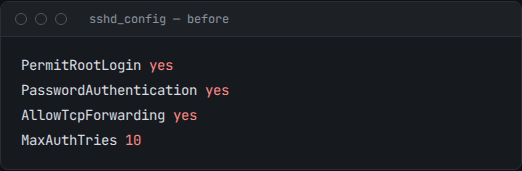
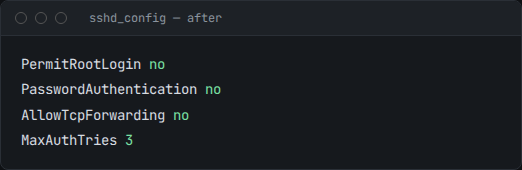
<p>Good for before-and-after comparisons (shortcut: <code class="language-plaintext highlighter-rouge">figpair</code>). On phones they stack one above the other.</p>

<div class="language-liquid highlighter-rouge"><div class="highlight"><pre class="highlight"><code><span class="cp">{%</span><span class="w"> </span><span class="nt">include</span><span class="w"> </span>figure.html<span class="w"> </span><span class="na">src</span><span class="o">=</span><span class="s2">"/assets/img/example-post-with-images-and-gifs/sshd-before.png"</span><span class="w"> </span><span class="na">alt</span><span class="o">=</span><span class="s2">"sshd_config before hardening"</span><span class="w"> </span><span class="na">src2</span><span class="o">=</span><span class="s2">"/assets/img/example-post-with-images-and-gifs/sshd-after.png"</span><span class="w"> </span><span class="na">alt2</span><span class="o">=</span><span class="s2">"sshd_config after hardening"</span><span class="w"> </span><span class="na">caption</span><span class="o">=</span><span class="s2">"Four settings changed in `sshd_config`."</span><span class="w"> </span><span class="cp">%}</span>
</code></pre></div></div>

<figure class="figure figure-pair">
  <div class="figure-media">
    <img alt="sshd_config before hardening, with root login, password login and TCP forwarding enabled" src="/assets/img/example-post-with-images-and-gifs/sshd-before.png" loading="lazy" decoding="async" />
    <img alt="sshd_config after hardening, with those settings disabled and MaxAuthTries lowered to 3" src="/assets/img/example-post-with-images-and-gifs/sshd-after.png" loading="lazy" decoding="async" />
  </div>
  <figcaption>Four settings changed in <code class="language-plaintext highlighter-rouge">sshd_config</code>.</figcaption>
</figure>

<h2 id="a-gif">A GIF</h2>

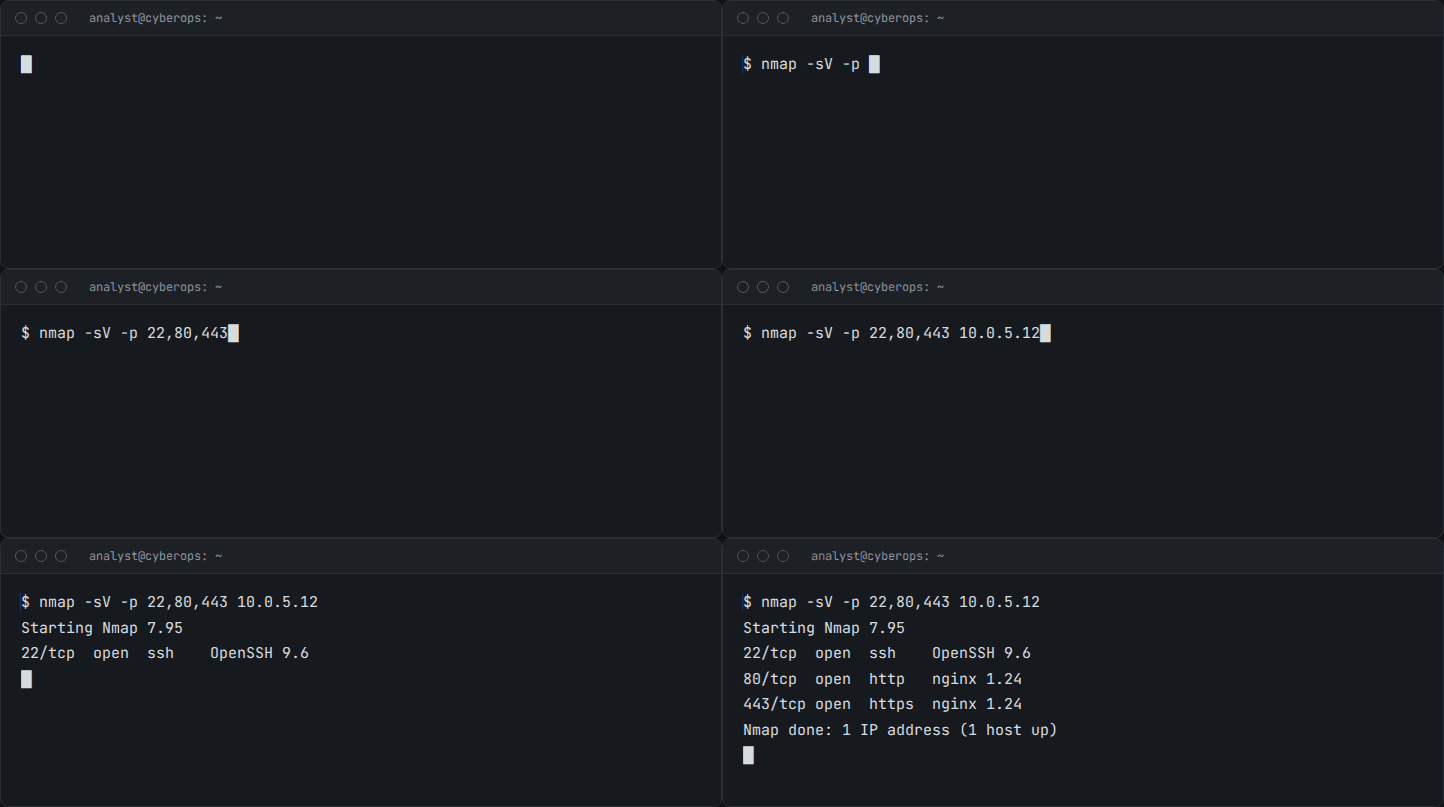
<p>GIFs work exactly like images: use either form above and point it at the <code class="language-plaintext highlighter-rouge">.gif</code> file (shortcut: <code class="language-plaintext highlighter-rouge">gif</code>).</p>

<div class="language-liquid highlighter-rouge"><div class="highlight"><pre class="highlight"><code><span class="cp">{%</span><span class="w"> </span><span class="nt">include</span><span class="w"> </span>figure.html<span class="w"> </span><span class="na">src</span><span class="o">=</span><span class="s2">"/assets/img/example-post-with-images-and-gifs/nmap-scan.gif"</span><span class="w"> </span><span class="na">alt</span><span class="o">=</span><span class="s2">"Terminal running an Nmap service scan"</span><span class="w"> </span><span class="na">caption</span><span class="o">=</span><span class="s2">"A service scan against the test host."</span><span class="w"> </span><span class="cp">%}</span>
</code></pre></div></div>

<figure class="figure">
  <div class="figure-media">
    <img alt="Animated terminal running an Nmap service scan that finds SSH and nginx open on a test host" src="/assets/img/example-post-with-images-and-gifs/nmap-scan.gif" loading="lazy" decoding="async" />
  </div>
  <figcaption>A service scan against the test host (GIF, 59 KB).</figcaption>
</figure>

<h2 id="a-screen-recording-better-than-a-gif">A screen recording (better than a GIF)</h2>

<p>The same animation saved as an MP4 video is a third of the size, and the gap grows with longer or more colourful clips. It plays exactly like a GIF: silent, looping, and starting by itself (shortcut: <code class="language-plaintext highlighter-rouge">video</code>).</p>

<div class="language-liquid highlighter-rouge"><div class="highlight"><pre class="highlight"><code><span class="cp">{%</span><span class="w"> </span><span class="nt">include</span><span class="w"> </span>video.html<span class="w"> </span><span class="na">src</span><span class="o">=</span><span class="s2">"/assets/img/example-post-with-images-and-gifs/nmap-scan.mp4"</span><span class="w"> </span><span class="na">alt</span><span class="o">=</span><span class="s2">"Terminal running an Nmap service scan"</span><span class="w"> </span><span class="na">caption</span><span class="o">=</span><span class="s2">"The same scan as a video."</span><span class="w"> </span><span class="cp">%}</span>
</code></pre></div></div>

<figure class="figure figure-video">
  <div class="figure-media">
    <video src="/assets/img/example-post-with-images-and-gifs/nmap-scan.mp4" autoplay="" loop="" muted="" playsinline="" preload="metadata" title="Terminal running an Nmap service scan that finds SSH and nginx open on a test host"></video>
  </div>
  <figcaption>The same scan as a video (MP4, 19 KB).</figcaption>
</figure>

<p>For longer recordings that readers might want to pause, add <code class="language-plaintext highlighter-rouge">controls=true</code>. The clip then waits for the reader to press play and shows a timeline.</p>

<blockquote class="callout callout-tip">
  <p class="callout-title"><strong>Tip</strong></p>
  <p>To turn a GIF into an MP4, install ffmpeg once with <code class="language-plaintext highlighter-rouge">winget install Gyan.FFmpeg</code>, then run:</p>

  <div class="language-powershell highlighter-rouge"><div class="highlight"><pre class="highlight"><code><span class="n">ffmpeg</span><span class="w"> </span><span class="nt">-i</span><span class="w"> </span><span class="nx">clip.gif</span><span class="w"> </span><span class="nt">-movflags</span><span class="w"> </span><span class="o">+</span><span class="nx">faststart</span><span class="w"> </span><span class="nt">-pix_fmt</span><span class="w"> </span><span class="nx">yuv420p</span><span class="w"> </span><span class="nt">-vf</span><span class="w"> </span><span class="s2">"scale=trunc(iw/2)*2:trunc(ih/2)*2"</span><span class="w"> </span><span class="nx">clip.mp4</span><span class="w">
</span></code></pre></div>  </div>

  <p>Windows’ built-in Snipping Tool can also record your screen straight to MP4: press <kbd>Win</kbd> + <kbd>Shift</kbd> + <kbd>R</kbd>.</p>
</blockquote>

<h2 id="keeping-images-light">Keeping images light</h2>

<p>The free hosting plan holds 250 MB for the whole site, and large images also slow pages down. A few habits keep both in check:</p>

<table>
  <thead>
    <tr>
      <th>Kind of image</th>
      <th>Best format</th>
      <th>Aim for</th>
    </tr>
  </thead>
  <tbody>
    <tr>
      <td>Screenshots, diagrams, terminal output</td>
      <td>PNG</td>
      <td>Under 300 KB</td>
    </tr>
    <tr>
      <td>Photos</td>
      <td>JPG or WebP</td>
      <td>Under 300 KB</td>
    </tr>
    <tr>
      <td>Short animations</td>
      <td>MP4 (via <code class="language-plaintext highlighter-rouge">video.html</code>)</td>
      <td>Under 2 MB</td>
    </tr>
    <tr>
      <td>GIFs you can’t convert</td>
      <td>GIF</td>
      <td>Under 3 MB</td>
    </tr>
  </tbody>
</table>

<p>Crop screenshots to the part that matters before pasting, and keep them no wider than about 2,000 pixels. Before publishing, check every image for anything sensitive: hostnames, usernames, tokens, IP ranges. Cover them with solid boxes rather than blur.</p>]]></content><author><name>CyberOps.Team</name></author><category term="misc" /><category term="meta" /><category term="writing" /><summary type="html"><![CDATA[Every way to put screenshots, GIFs and short screen recordings into a post, with the exact text to copy for each one.]]></summary><media:thumbnail xmlns:media="http://search.yahoo.com/mrss/" url="https://blog.cyberops.team/assets/img/example-post-with-images-and-gifs/cover.png" /><media:content medium="image" url="https://blog.cyberops.team/assets/img/example-post-with-images-and-gifs/cover.png" xmlns:media="http://search.yahoo.com/mrss/" /></entry><entry><title type="html">Welcome to the new blog: a tour of what you can write</title><link href="https://blog.cyberops.team/welcome-to-the-new-blog/" rel="alternate" type="text/html" title="Welcome to the new blog: a tour of what you can write" /><published>2026-10-01T00:00:00+00:00</published><updated>2026-10-01T00:00:00+00:00</updated><id>https://blog.cyberops.team/welcome-to-the-new-blog</id><content type="html" xml:base="https://blog.cyberops.team/welcome-to-the-new-blog/"><![CDATA[<p>This blog is now a folder of Markdown files in a Git repository. No database, no plugins to patch, no admin panel to brute-force. This post doubles as a reference for every formatting option the theme supports, so keep it open while you write.</p>

<h2 id="text-basics">Text basics</h2>

<p>Write paragraphs as normal. Use <strong>bold</strong> for emphasis, <em>italics</em> for terms, and <code class="language-plaintext highlighter-rouge">inline code</code> for commands, file paths like <code class="language-plaintext highlighter-rouge">C:\Windows\System32\drivers\etc\hosts</code>, or registry keys. Keyboard shortcuts look like <kbd>Ctrl</kbd> + <kbd>Shift</kbd> + <kbd>V</kbd>.</p>

<p>Links work the usual way: <a href="https://attack.mitre.org/techniques/T1059/001/">MITRE ATT&amp;CK T1059.001</a>.</p>

<h2 id="callouts">Callouts</h2>

<p>Use GitHub-style alerts. They render as callouts on the site, and GitHub shows them properly too.</p>

<blockquote class="callout callout-note">
  <p class="callout-title"><strong>Note</strong></p>
  <p>Background context the reader might want, but can skip.</p>
</blockquote>

<blockquote class="callout callout-tip">
  <p class="callout-title"><strong>Tip</strong></p>
  <p>A faster way to do something.</p>
</blockquote>

<blockquote class="callout callout-important">
  <p class="callout-title"><strong>Important</strong></p>
  <p>Something the reader must know to succeed.</p>
</blockquote>

<blockquote class="callout callout-warning">
  <p class="callout-title"><strong>Warning</strong></p>
  <p>This command modifies production firewall rules. Test in a lab first.</p>
</blockquote>

<blockquote class="callout callout-caution">
  <p class="callout-title"><strong>Caution</strong></p>
  <p>Live malware sample. Handle only inside an isolated analysis VM.</p>
</blockquote>

<h2 id="code-blocks">Code blocks</h2>

<p>Put the language after the opening backticks to get highlighting, a label and a copy button.</p>

<div class="language-bash highlighter-rouge"><div class="highlight"><pre class="highlight"><code><span class="c"># Hunt for recently modified SUID binaries</span>
find / <span class="nt">-perm</span> <span class="nt">-4000</span> <span class="nt">-type</span> f <span class="nt">-mtime</span> <span class="nt">-7</span> 2&gt;/dev/null | xargs <span class="nb">ls</span> <span class="nt">-la</span>
</code></pre></div></div>

<div class="language-powershell highlighter-rouge"><div class="highlight"><pre class="highlight"><code><span class="c"># Pull failed logons from the last 24 hours</span><span class="w">
</span><span class="n">Get-WinEvent</span><span class="w"> </span><span class="nt">-FilterHashtable</span><span class="w"> </span><span class="p">@{</span><span class="nx">LogName</span><span class="o">=</span><span class="s1">'Security'</span><span class="p">;</span><span class="w"> </span><span class="nx">Id</span><span class="o">=</span><span class="mi">4625</span><span class="p">;</span><span class="w"> </span><span class="nx">StartTime</span><span class="o">=</span><span class="err">(</span><span class="nx">Get</span><span class="err">-</span><span class="nx">Date</span><span class="err">).</span><span class="nx">AddDays</span><span class="err">(-</span><span class="mi">1</span><span class="err">)</span><span class="p">}</span><span class="w"> </span><span class="o">|</span><span class="w">
  </span><span class="n">Select-Object</span><span class="w"> </span><span class="nx">TimeCreated</span><span class="p">,</span><span class="w"> </span><span class="p">@{</span><span class="nx">n</span><span class="o">=</span><span class="s1">'User'</span><span class="p">;</span><span class="nx">e</span><span class="o">=</span><span class="p">{</span><span class="bp">$_</span><span class="o">.</span><span class="n">Properties</span><span class="p">[</span><span class="mi">5</span><span class="p">]</span><span class="o">.</span><span class="nf">Value</span><span class="p">}},</span><span class="w"> </span><span class="p">@{</span><span class="nx">n</span><span class="o">=</span><span class="s1">'Source'</span><span class="p">;</span><span class="nx">e</span><span class="o">=</span><span class="p">{</span><span class="bp">$_</span><span class="o">.</span><span class="n">Properties</span><span class="p">[</span><span class="mi">19</span><span class="p">]</span><span class="o">.</span><span class="nf">Value</span><span class="p">}}</span><span class="w">
</span></code></pre></div></div>

<div class="language-python highlighter-rouge"><div class="highlight"><pre class="highlight"><code><span class="kn">import</span> <span class="n">hashlib</span>
<span class="kn">from</span> <span class="n">pathlib</span> <span class="kn">import</span> <span class="n">Path</span>

<span class="k">def</span> <span class="nf">sha256</span><span class="p">(</span><span class="n">path</span><span class="p">:</span> <span class="n">Path</span><span class="p">)</span> <span class="o">-&gt;</span> <span class="nb">str</span><span class="p">:</span>
    <span class="n">h</span> <span class="o">=</span> <span class="n">hashlib</span><span class="p">.</span><span class="nf">sha256</span><span class="p">()</span>
    <span class="k">with</span> <span class="n">path</span><span class="p">.</span><span class="nf">open</span><span class="p">(</span><span class="sh">"</span><span class="s">rb</span><span class="sh">"</span><span class="p">)</span> <span class="k">as</span> <span class="n">f</span><span class="p">:</span>
        <span class="k">for</span> <span class="n">chunk</span> <span class="ow">in</span> <span class="nf">iter</span><span class="p">(</span><span class="k">lambda</span><span class="p">:</span> <span class="n">f</span><span class="p">.</span><span class="nf">read</span><span class="p">(</span><span class="mi">65536</span><span class="p">),</span> <span class="sa">b</span><span class="sh">""</span><span class="p">):</span>
            <span class="n">h</span><span class="p">.</span><span class="nf">update</span><span class="p">(</span><span class="n">chunk</span><span class="p">)</span>
    <span class="k">return</span> <span class="n">h</span><span class="p">.</span><span class="nf">hexdigest</span><span class="p">()</span>
</code></pre></div></div>

<div class="language-yaml highlighter-rouge"><div class="highlight"><pre class="highlight"><code><span class="na">title</span><span class="pi">:</span> <span class="s">Suspicious Encoded PowerShell Command</span>
<span class="na">status</span><span class="pi">:</span> <span class="s">experimental</span>
<span class="na">logsource</span><span class="pi">:</span>
  <span class="na">product</span><span class="pi">:</span> <span class="s">windows</span>
  <span class="na">category</span><span class="pi">:</span> <span class="s">process_creation</span>
<span class="na">detection</span><span class="pi">:</span>
  <span class="na">selection</span><span class="pi">:</span>
    <span class="na">Image|endswith</span><span class="pi">:</span> <span class="s1">'</span><span class="s">\powershell.exe'</span>
    <span class="na">CommandLine|contains</span><span class="pi">:</span> <span class="s1">'</span><span class="nv"> </span><span class="s">-enc</span><span class="nv"> </span><span class="s">'</span>
  <span class="na">condition</span><span class="pi">:</span> <span class="s">selection</span>
<span class="na">level</span><span class="pi">:</span> <span class="s">high</span>
</code></pre></div></div>

<div class="language-diff highlighter-rouge"><div class="highlight"><pre class="highlight"><code><span class="gd">- AllowTcpForwarding yes
</span><span class="gi">+ AllowTcpForwarding no
</span></code></pre></div></div>

<h2 id="tables">Tables</h2>

<p>Good for indicators of compromise and CVE round-ups.</p>

<table>
  <thead>
    <tr>
      <th>Type</th>
      <th>Indicator</th>
      <th>Notes</th>
    </tr>
  </thead>
  <tbody>
    <tr>
      <td>SHA256</td>
      <td><code class="language-plaintext highlighter-rouge">e3b0c44298fc1c149afbf4c8996fb924...</code></td>
      <td>Loader, first stage</td>
    </tr>
    <tr>
      <td>Domain</td>
      <td><code class="language-plaintext highlighter-rouge">update-check[.]example</code></td>
      <td>C2, defanged</td>
    </tr>
    <tr>
      <td>IPv4</td>
      <td><code class="language-plaintext highlighter-rouge">203.0.113[.]45</code></td>
      <td>Staging server</td>
    </tr>
  </tbody>
</table>

<h2 id="lists">Lists</h2>

<ol>
  <li>Contain the host.</li>
  <li>Capture memory before rebooting.</li>
  <li>Pull the relevant logs.</li>
</ol>

<p>Bullet points work too:</p>

<ul>
  <li>Start each line with a dash</li>
  <li>Nest them by indenting two spaces
    <ul>
      <li>like this</li>
    </ul>
  </li>
</ul>

<h2 id="images">Images</h2>

<p>Each post keeps its pictures in its own folder, <code class="language-plaintext highlighter-rouge">assets/img/&lt;post-name&gt;/</code>. The quickest way to add one is to take a screenshot (<kbd>Win</kbd> + <kbd>Shift</kbd> + <kbd>S</kbd>), click into the post and press <kbd>Ctrl</kbd> + <kbd>V</kbd>: VS Code saves the file into that folder and inserts the link. Then replace “Alt text” with a short description of the picture.</p>

<div class="language-markdown highlighter-rouge"><div class="highlight"><pre class="highlight"><code><span class="p">![</span><span class="nv">Process tree from the EDR console</span><span class="p">](</span><span class="sx">/assets/img/my-post/process-tree.png</span><span class="p">)</span>
</code></pre></div></div>

<p>For captions, extra-wide screenshots, before-and-after pairs, GIFs and screen recordings, see <a href="/misc/example-post-with-images-and-gifs/">Example post: images, GIFs and screen recordings</a>.</p>

<h2 id="preview-images">Preview images</h2>

<p>Add an <code class="language-plaintext highlighter-rouge">image:</code> line to the front matter and that picture appears next to the post on the home page and its category page. It’s also the card image when someone shares the link on LinkedIn, X, Slack or Teams.</p>

<div class="language-yaml highlighter-rouge"><div class="highlight"><pre class="highlight"><code><span class="na">image</span><span class="pi">:</span> <span class="s">/assets/img/my-post/cover.png</span>
</code></pre></div></div>

<p>Landscape images around 1200 × 630 pixels work best for both; keep anything important away from the edges, as they may be trimmed slightly. Posts without an image get a tile showing their first tag, and shares use the site’s default card.</p>]]></content><author><name>CyberOps.Team</name></author><category term="meta" /><category term="writing" /><summary type="html"><![CDATA[The blog is now plain Markdown, built automatically and hosted on Azure. Here's everything you can use when writing a post.]]></summary><media:thumbnail xmlns:media="http://search.yahoo.com/mrss/" url="https://blog.cyberops.team/assets/img/welcome-cover.png" /><media:content medium="image" url="https://blog.cyberops.team/assets/img/welcome-cover.png" xmlns:media="http://search.yahoo.com/mrss/" /></entry></feed>