Example post: images, GIFs and screen recordings
Every way to put screenshots, GIFs and short screen recordings into a post, with the exact text to copy for each one.
This post shows each way to add pictures to a write-up. Every example below is live, so you can see the result and copy the text above it. All images for a post live in one folder, assets/img/<post-name>/; this post’s are in assets/img/example-post-with-images-and-gifs/.
Click any image to see it full size. Press Esc or click again to close it.
The quickest way: paste a screenshot
- Take a screenshot with Win + Shift + S.
- Click where you want it in your post and press Ctrl + V.
VS Code saves the image into this post’s folder and inserts a line like this:

Change Alt text to a short description of what the image shows, and rename the file to something meaningful (image.png → edr-alert.png). You can also drag image files from File Explorer into the post; they’re copied into the same folder.
A plain image
The simplest form, for an image that needs no caption:
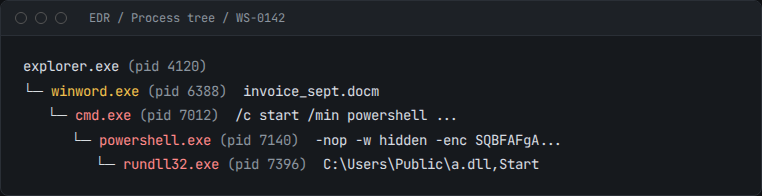

An image with a caption
Type fig and press Ctrl + Space to insert this. Captions can include code and bold.
{% include figure.html src="/assets/img/example-post-with-images-and-gifs/siem-alerts.png" alt="SIEM alert list showing Kerberoasting alerts on DC01" caption="The first two alerts fired within two seconds of each other on `DC01`." %}
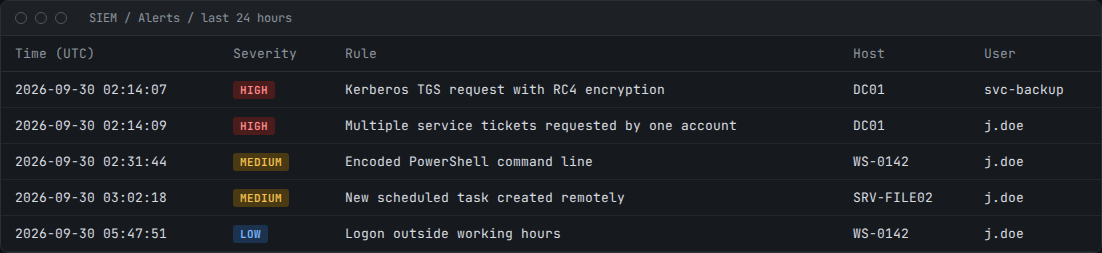
DC01.A wide image
For dashboards and wide screenshots, add wide=true (shortcut: figwide). On a computer the image spreads wider than the text; on a phone it fits the screen as normal.
{% include figure.html src="/assets/img/example-post-with-images-and-gifs/siem-alerts.png" alt="…" caption="…" wide=true %}
Two images side by side
Good for before-and-after comparisons (shortcut: figpair). On phones they stack one above the other.
{% include figure.html src="/assets/img/example-post-with-images-and-gifs/sshd-before.png" alt="sshd_config before hardening" src2="/assets/img/example-post-with-images-and-gifs/sshd-after.png" alt2="sshd_config after hardening" caption="Four settings changed in `sshd_config`." %}
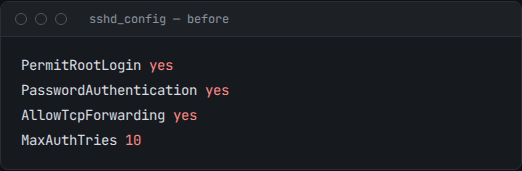
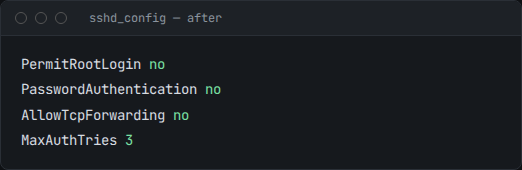
sshd_config.A GIF
GIFs work exactly like images: use either form above and point it at the .gif file (shortcut: gif).
{% include figure.html src="/assets/img/example-post-with-images-and-gifs/nmap-scan.gif" alt="Terminal running an Nmap service scan" caption="A service scan against the test host." %}
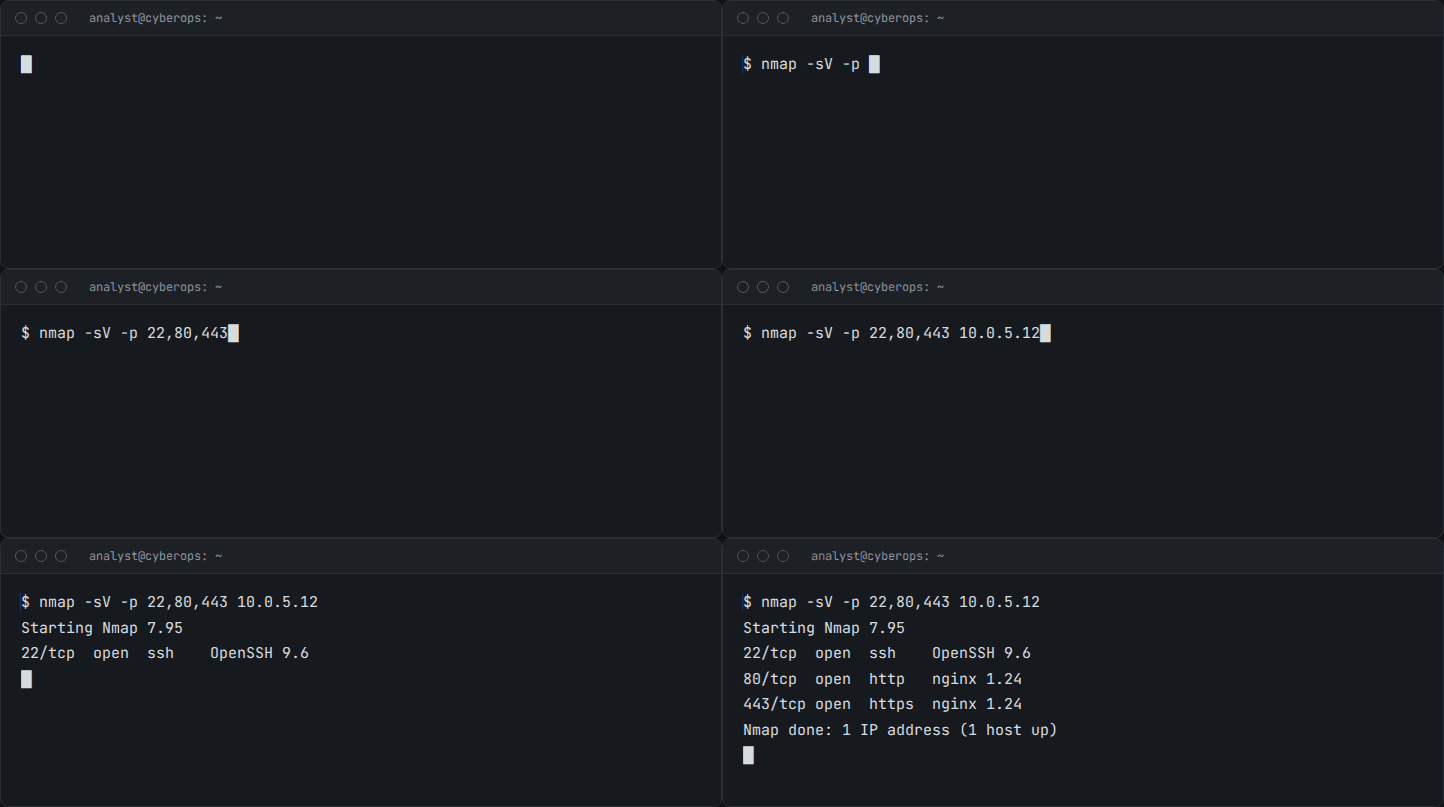
A screen recording (better than a GIF)
The same animation saved as an MP4 video is a third of the size, and the gap grows with longer or more colourful clips. It plays exactly like a GIF: silent, looping, and starting by itself (shortcut: video).
{% include video.html src="/assets/img/example-post-with-images-and-gifs/nmap-scan.mp4" alt="Terminal running an Nmap service scan" caption="The same scan as a video." %}
For longer recordings that readers might want to pause, add controls=true. The clip then waits for the reader to press play and shows a timeline.
Tip
To turn a GIF into an MP4, install ffmpeg once with
winget install Gyan.FFmpeg, then run:ffmpeg -i clip.gif -movflags +faststart -pix_fmt yuv420p -vf "scale=trunc(iw/2)*2:trunc(ih/2)*2" clip.mp4Windows’ built-in Snipping Tool can also record your screen straight to MP4: press Win + Shift + R.
Keeping images light
The free hosting plan holds 250 MB for the whole site, and large images also slow pages down. A few habits keep both in check:
| Kind of image | Best format | Aim for |
|---|---|---|
| Screenshots, diagrams, terminal output | PNG | Under 300 KB |
| Photos | JPG or WebP | Under 300 KB |
| Short animations | MP4 (via video.html) |
Under 2 MB |
| GIFs you can’t convert | GIF | Under 3 MB |
Crop screenshots to the part that matters before pasting, and keep them no wider than about 2,000 pixels. Before publishing, check every image for anything sensitive: hostnames, usernames, tokens, IP ranges. Cover them with solid boxes rather than blur.